
Using the GUI#
The Zoomy GUI is a static web application — no install, no server.
It opens on a clean, full-window GUI (the VS Code chrome — menus, activity bar,
tabs — is hidden until you edit code). First load is a large download (the shell
is heavy) and the in-browser kernel warms zoomy-core in the background — give
it a moment.
What it is#
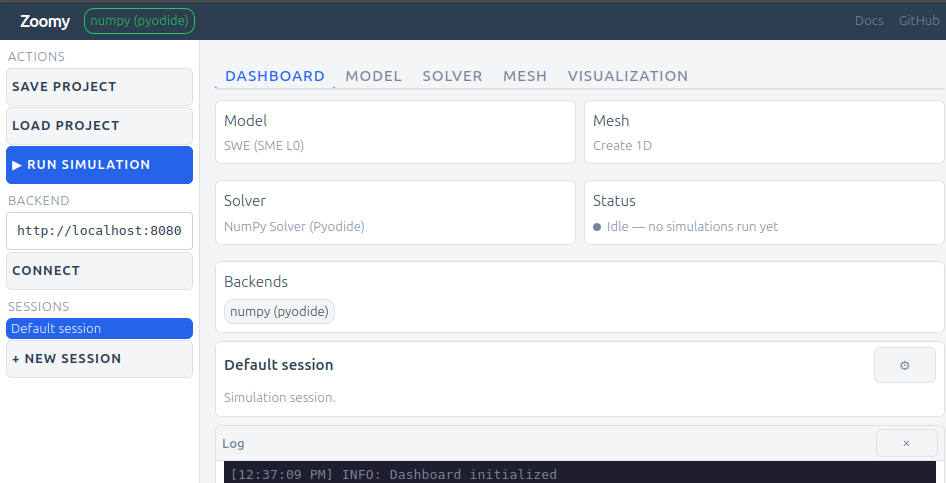
A card-based GUI for composing and running a free-surface-flow case:
Compose — pick a Model, Mesh, Solver (and optionally a Volume of Fluid participant and Visualization viewers) from cards grouped into sub-tabs. A parameters panel edits each card’s inputs, the model equations render inline (KaTeX), and the mesh previews live.
Run in the browser — the built-in NumPy solver runs on an in-browser Pyodide kernel (off the main thread, with jedi autocomplete). No install, no server.
Run on a backend — connect an external
zoomy-server(numpy / jax / amrex / dmplex / foam) and the composed case is submitted and solved remotely; the result store comes back for visualization. NumPy-in-browser is always available; other tags light up when you connect a matching backend.It’s just a case — every GUI action edits one canonical
case.py(## Model / ## Mesh / ## Solver settings / ## Run), which round-trips to a Jupyter notebook and exports as.py/.ipynb. Edit jumps to the right section; edit mode adds or removes cards.
Rich output in cells#
Cells render rich output — text, matplotlib figures, LaTeX equations — through
the host kernel’s display. Case code should not hand-roll a fallback for this;
call zoomy_core.misc.show.show(), which renders through whatever the host
provides and degrades to plain text under a bare python case.py:
from zoomy_core.misc.show import show

show(model.describe())                    # any object
show(eq=(sympy.Symbol("h^*"), h_expr))    # a rendered equation
show(fig)                                 # a matplotlib figure
A local display = lambda *a: None shim is the failure mode to avoid: it
silently swallows the figure while the run still looks successful.
How it’s built#
Eclipse Theia’s browser-only target builds the whole IDE frontend to
static files — no Node backend, no plugin host. A small native Theia
extension (zoomy-theia-ext) registers everything the standard way: the
card GUI view, a native notebook + in-browser Pyodide NotebookKernel, and a
DOM output surface for text, matplotlib and rich describe() output. The kernel
reuses the Zoomy GUI “brain” (zoomy_cli) for the card catalog, case
composition, param extraction and backend submission.
The goal is one GUI, three targets — the same code on the web (this backend-less build), as a VS Code / Theia extension (local), and as a Theia Electron app (desktop), changing only the host and one stylesheet.
Connecting your own backend#
The page is served over HTTPS, but browsers exempt http://localhost from
mixed-content blocking, so a zoomy-server container on your own machine
(:8080) can be connected with no tunnel or certificate — run the container and
connect. For a backend on another machine, forward it to localhost
(ssh -L 8080:localhost:8080 …) or expose it over HTTPS (e.g. Tailscale Serve).
Source: library/zoomy_gui/ — a @theia/cli browser-only app plus the
zoomy-theia-ext/ native extension and the gui/ brain. CI builds it and
serves it at /gui/.